Get the app.
Download Flashtech ColorChase from the App Store or Google Play and turn on Bluetooth.
 ColorChaseBY FLASHTECH LIGHTING
One app for your ColorChase lights. Pick a color, find your favorite effect, and bring your controllers together.
Free to download. Bluetooth control. No account needed.
Need the hardware? Shop the controller ↗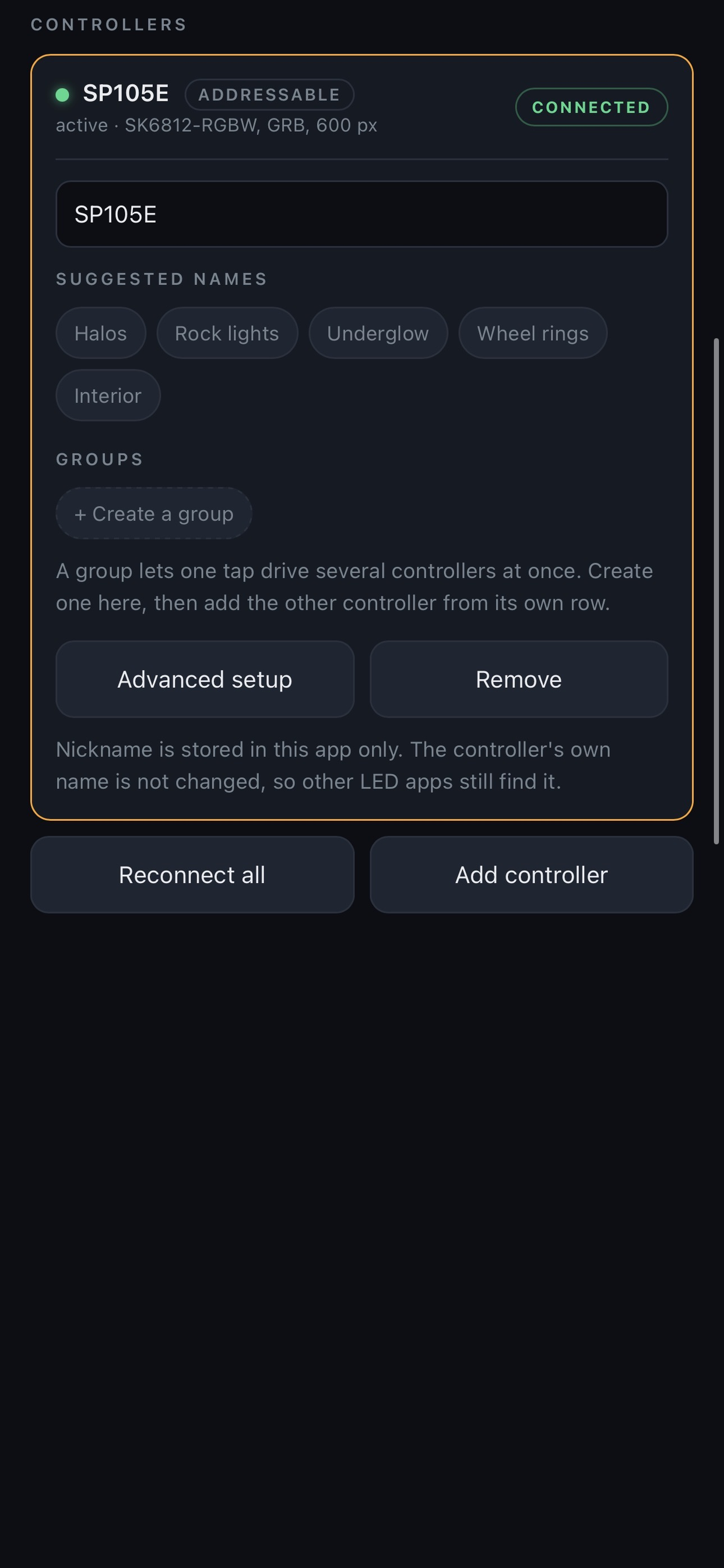
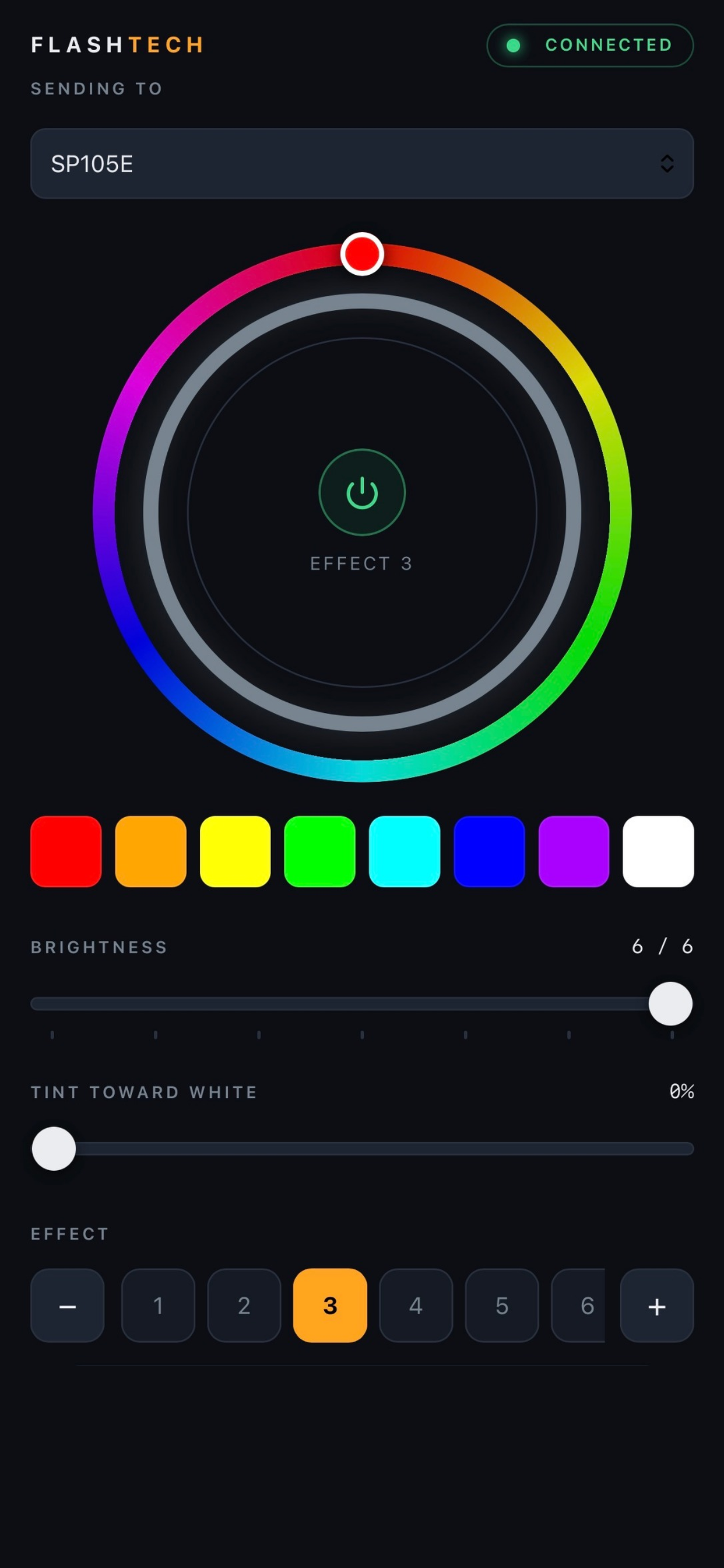
The main screen puts everyday lighting controls in one place. Choose your controller or group first, then make your changes.
Use Sending to at the top to select one controller or a group.
Tap the color wheel, or choose one of the quick color swatches underneath. Tint toward white to soften the color.
Move the Brightness slider through seven levels. The separate effect speed control adjusts how fast a moving pattern runs.
Tap the power button in the center of the wheel. Use Last color or Last pattern to return to what you used before.
Around 200 numbered moving effects give you plenty to explore. Save a favorite so you do not have to recreate it next time.
Use the effect numbers and plus/minus controls, or open Browse effects and search for an effect.
Adjust effect speed in seven levels. Brightness is separate, so you can slow a pattern without dimming it.
Turn on Cycle effects and choose how long each effect holds. With several controllers, the app changes them to the same effect together. On iPhone it keeps going with the phone locked or while you use another app, as long as your phone stays within Bluetooth range of the controllers. On Android, keep the app open.
A favorite remembers color or pattern, brightness and speed. Tap Save, give it a name, then recall it with one tap. You can keep as many favorites as you like; a favorite saved across controllers restores their individual settings.
Separate controllers no longer mean setting one light, disconnecting, and trying to match the next from memory. Connect several at once and choose how you want to use them.
Call them Halos and Underglow. If the app asks which controller you connected, use Flash to see which lights respond.
Select a group in Sending to to change solid colors, brightness and power together. The All group is always available.
Choose an individual controller to change the underglow without changing your halos. Save a favorite across both to bring the complete look back.
Moving effects can drift because each controller runs its own animation. Restart effect on all in group starts them together again. Automatic cycling changes the group to each next effect at the same time.
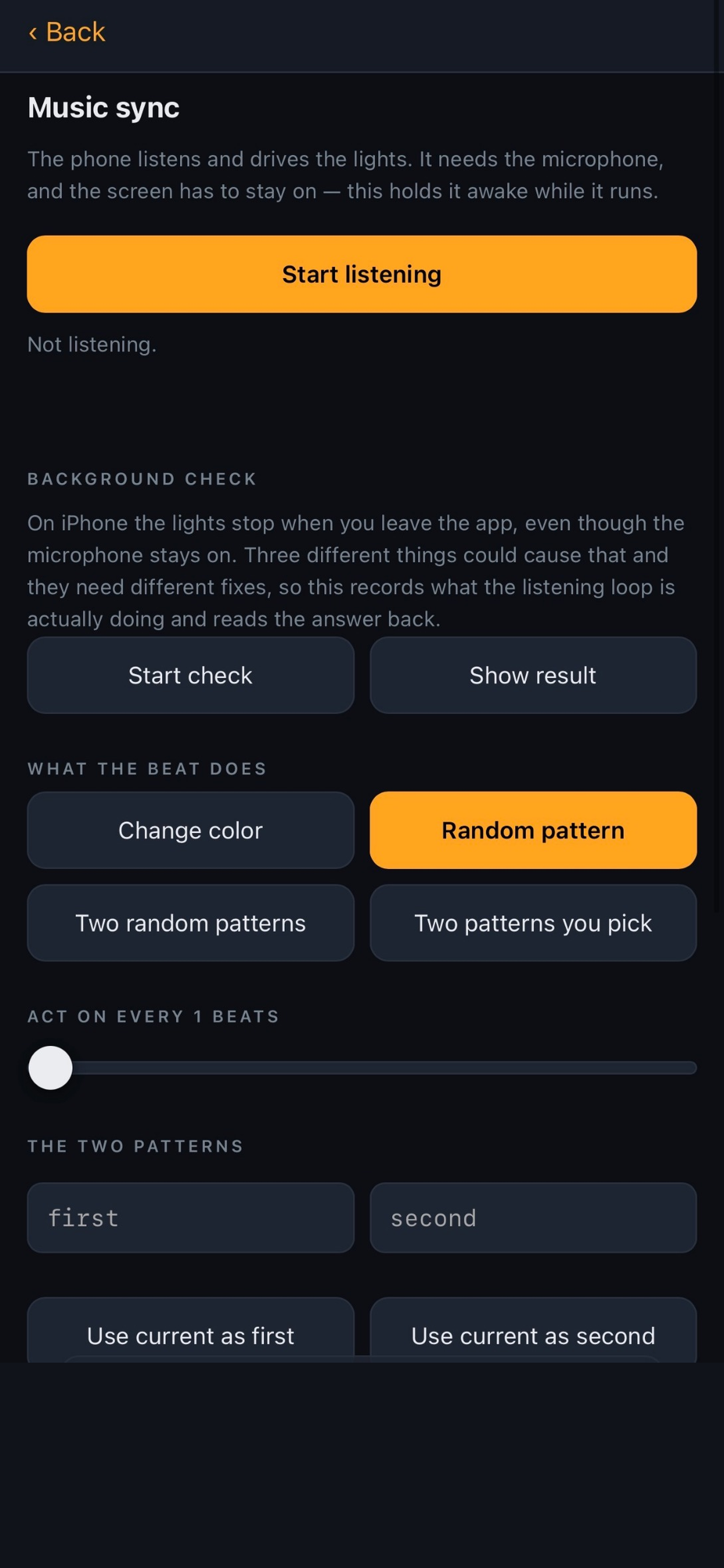
Music sync uses your phone’s microphone to respond to the sounds around you. Tap Music sync, allow microphone access, choose a response, then tap Start listening. Watch your lights react to the beat.
Audio is not recorded or sent anywhere. On iPhone, music sync keeps going with your phone locked or while you use another app, as long as your phone stays within Bluetooth range. On Android, keep the app open.
See moving ColorChase effects on Flashtech halo lighting.
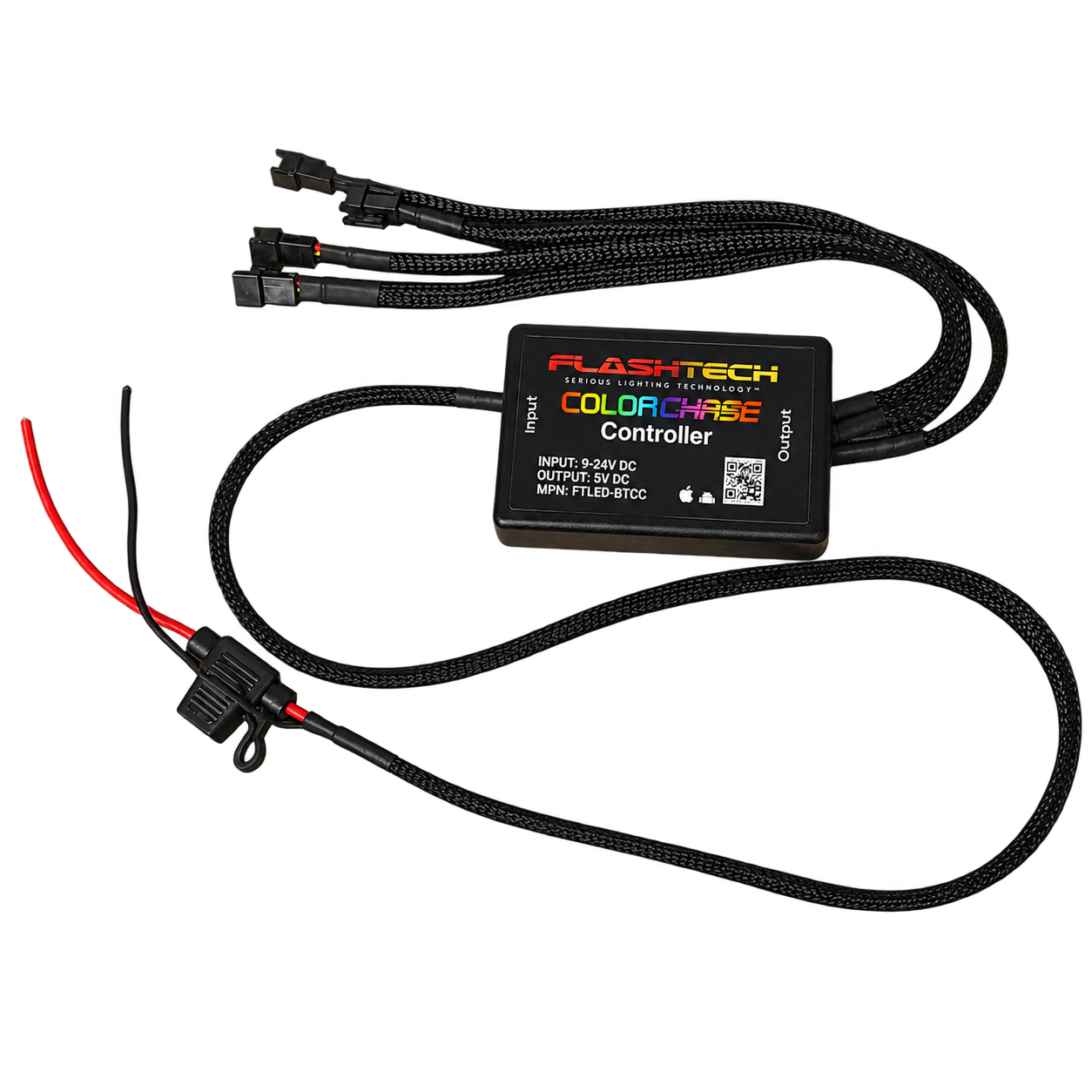
ColorChase works with all Flashtech ColorChase controllers. Connect your lighting, configure the LED chip type, color order and pixel count, then control it from your phone.
Shop the ColorChase controller ↗Already have Flashtech ColorChase lighting? Use the app with your existing Flashtech ColorChase controller.
Download Flashtech ColorChase from the App Store or Google Play and turn on Bluetooth.
Power your Flashtech ColorChase controller, open the app and tap Connect controller. Allow the requested Bluetooth permissions.
Give each controller a name, choose a color, and create a group if you want to control several together.
Check that it is powered and Bluetooth is enabled. On Android, allow Precise location when requested. Use the installed iPhone app; Safari cannot connect to Bluetooth controllers.
Turn the controller’s power off and back on, then reconnect. If only one controller changes, check the Sending to selector and choose the right group.
Check the LED chip type, color order and pixel count in Advanced setup. The controller stores these settings, so match them to the strip you installed.
Yes. The installed app controls your lights directly over Bluetooth once downloaded. Stay within Bluetooth range of your controller.
Need a hand with your setup?
Contact Flashtech ↗In Advanced setup, choose the LED chip type, color order and pixel count. These settings are stored in the controller and survive a power cycle. Update the chip setting when changing between RGBW and RGB strips.
Name the controllers after the lights they run, then create useful groups. If a controller is re-paired, Flash helps identify which strip is connected.
Diagnostics sits behind a support code, with connection logs and hardware tests to help the shop troubleshoot without cluttering everyday controls.
Controller names, groups and favorites are kept on your phone. Use Backup to copy them out and bring them to another phone. A built-in manual also keeps help available inside the app when you are at the vehicle without a signal.
Flashtech ColorChase. Available now for iPhone and Android.